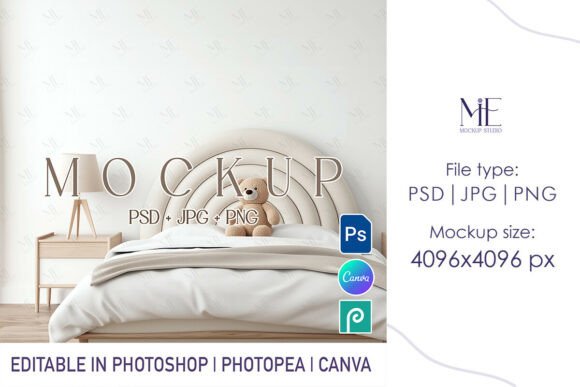
Mastering the Wallpaper Baby Room Wall Mural Mockup for Professional Presentations
Visualizing a design in a real-world setting is often the difference between a client saying "maybe" and signing the contract immediately. When you are creating custom decor for a nursery, the Wallpaper Baby Room Wall Mural Mockup becomes your most valuable asset. It allows designers, interior decorators, and small business owners to present their artwork exactly as it will appear on a wall, complete with realistic lighting, texture, and perspective. However, simply downloading a template is not enough. Many creators stumble over technical details that compromise the final image, turning a potentially stunning portfolio piece into something that looks flat or unprofessional.
The primary appeal of using a dedicated mockup for baby room murals lies in emotional connection. Parents do not just buy wallpaper; they buy an atmosphere for their child's room. A high-quality mockup bridges the gap between a digital file and that emotional reality. Yet, there are common pitfalls in how these tools are selected and utilized that can undermine your efforts. Understanding these nuances ensures your work stands out in a crowded marketplace.
Avoiding the Resolution Trap
One of the most frequent mistakes beginners make is overlooking file resolution until it is too late. You might find a Wallpaper Baby Room Wall Mural Mockup that looks perfect on your screen, only to discover it pixelates when printed or viewed on a high-definition monitor. This happens because many free or low-cost templates are optimized for web thumbnails rather than professional presentation.
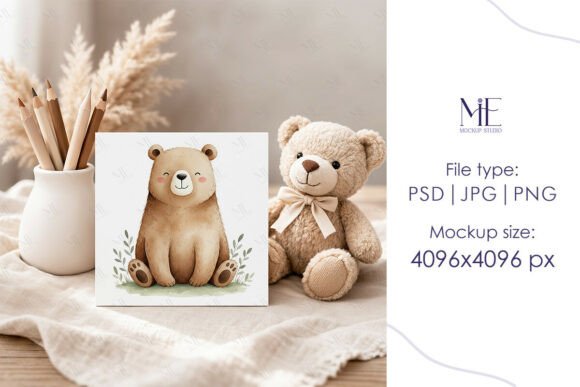
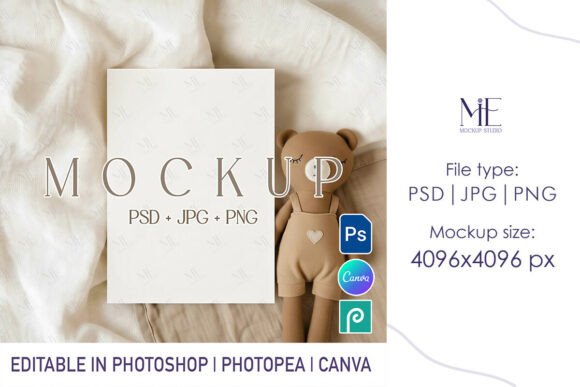
When the resolution is insufficient, the edges of your design become jagged, and the subtle textures of the wall—like plaster grain or paint strokes—disappear into a blur. This lack of detail signals low quality to potential clients, regardless of how good your actual artwork is. To avoid this, always verify the dimensions before purchasing or downloading. A professional standard today is at least 4096x4096 pixels. This ensures that whether you are posting on Instagram or sending a PDF proof to a client, the image remains crisp and detailed.
Furthermore, check the file format carefully. While JPGs are common, they can introduce compression artifacts. Ideally, your workflow should include access to PNG files for transparency and layering, alongside high-resolution JPGs for final sharing. If a template provider offers a PSD with smart objects, ensure the base image within that PSD meets these high-resolution standards.
Misunderstanding Smart Object Workflows
Even with a high-resolution file, the usability of a Wallpaper Baby Room Wall Mural Mockup depends entirely on how well you understand Smart Objects in Photoshop. A common error is attempting to paste designs directly onto the main canvas instead of editing the embedded Smart Object layer. This approach bypasses the automatic warping, lighting adjustments, and shadow generation built into the template.
When you ignore the Smart Object function, your design sits unnaturally on top of the wall. It lacks the subtle curvature that occurs when paper meets a corner, and it misses the shadows cast by furniture or window light. The result is a "sticker" effect that breaks immersion. The correct method involves locating the specific layer marked as a Smart Object, double-clicking its thumbnail, placing your design in the new window that opens, saving it, and watching it seamlessly integrate into the scene.
For those who prefer working in Canva, look for templates that provide high-resolution PNG exports compatible with drag-and-drop editors. However, be aware that browser-based editors sometimes struggle with the complex blending modes found in advanced PSDs. If ultimate realism is your goal, mastering the Photoshop Smart Object workflow is non-negotiable.
Choosing the Wrong Context for Your Design
The environment surrounding your mural matters just as much as the mural itself. A significant oversight occurs when designers choose a mockup scene that clashes with their artistic style. For instance, placing a whimsical, pastel animal mural in a dark, moody, industrial-style room mockup creates cognitive dissonance. It confuses the viewer about the intended vibe of the product.
Always evaluate the lighting and color temperature of the mockup room. A nursery typically benefits from soft, natural daylight that highlights gentle colors. If the mockup uses harsh artificial lighting or overly saturated hues, it can distort the colors of your design, leading to customer dissatisfaction later when the physical product looks different than the preview. Before committing to a specific Kids Nursery Wallpaper Mock up Canva Template or PSD, ask yourself if the room's aesthetic aligns with your target audience's expectations.
Neglecting Editable Flexibility
Not all mockups are created equal regarding customization. Some templates lock you into a specific view or prevent you from changing the wall color. This limitation can be costly if a client requests to see how the design looks against a sage green wall instead of white. Failing to check for editable background layers can force you to recreate the entire scene from scratch.
To maintain efficiency, ensure your chosen template includes separate layers for wall color, lighting intensity, and even furniture placement if possible. The ability to toggle these elements allows you to offer multiple variations to a client without needing five different mockup files. This flexibility demonstrates professionalism and saves hours of editing time.
Practical Steps for Better Results
To maximize the value of your digital assets and ensure your presentations are flawless, follow these corrective steps:
- Verify File Specifications: Before checkout, confirm the package includes a PSD with Smart Objects, a 4096x4096 JPG, and a PNG version. Avoid packages that only offer flattened images.
- Test the Workflow: Immediately after downloading, open the PSD and test the Smart Object layer with a placeholder image. Ensure the warping and shadows apply correctly before using it for a client project.
- Match the Mood: Select a room scene that complements the theme of your mural. Soft lighting and neutral furnishings usually work best for baby room contexts.
- Check for Watermarks: Ensure the preview images are clean. Reputable sellers provide watermarked previews for display but deliver clean files upon purchase. Never try to remove watermarks from free samples; instead, invest in the licensed version for legal and quality assurance.
- Organize Your Layers: Once your design is inserted, save a copy of the PSD with clear layer names. This makes future edits significantly faster if the client requests changes.
By paying attention to these details, you transform a simple image file into a powerful sales tool. The Wallpaper Baby Room Wall Mural Mockup is more than just a background; it is a simulation of the final product that builds trust and excitement. Whether you are a freelancer selling on Etsy or an agency pitching to large retailers, the quality of your visualization directly impacts your perceived value. Take the time to choose wisely, edit correctly, and present your work with the polish it deserves.